How to find out where you were on a certain date
On an iPhone, start with your photos: open Photos, tap Search, type the month and year, like “March 2023”, and scroll to the day. Swipe up on a photo to see where it was taken. Then check Visited Places in Maps (iOS 26 and later), your Calendar, Wallet and card statements, and Google Maps Timeline if you had it on.

Ricordo · Where you were, day by dayFree on the App Store, for iPhone and iPad
Download on the App Store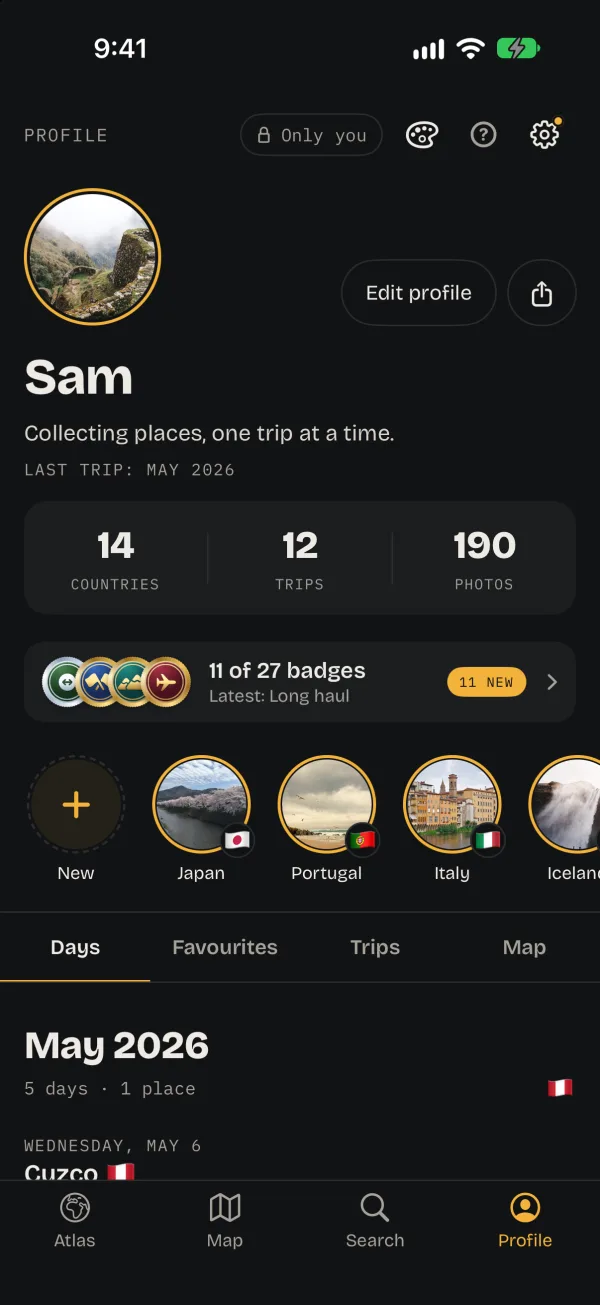
Your photos: the best record you have
Every photo taken with Location Services on keeps the date, the time and the place, for as long as you keep the photo. To find a day:
- Open Photos and tap Search.
- Type the month and year, like “March 2023”, and tap the suggestion.
- Scroll to the day you want.
- Open a photo and swipe up, or tap ⓘ: the date, the time and a map of where it was taken are in the details.
If you know roughly when, browsing can be quicker: on iOS 18 and later, use Years and Months in your library. More ways are in finding photos by date on iPhone, and more on a photo’s place in where was this photo taken.
No photos that day? The ones from the day before and the day after often narrow it down to a city.
Visited Places and Significant Locations
Your iPhone has two location records of its own. Both only know what they saw while they were turned on.
Visited Places in Maps (iOS 26 and later)
Maps can keep a list of the places you’ve visited, like a restaurant on a trip. To look up a day:
- Open Maps, tap Places, then Visited Places.
- Use the date filter to pick the day, or tap All Visits.
It only has visits from after it was turned on, in Settings → Apps → Maps → Location, and Maps keeps them for as long as you chose under Keep Visits. Visited Places is end-to-end encrypted, so Apple can’t read it, and it isn’t available in every country or region.
Significant Locations & Routes
Go to Settings → Privacy & Security → Location Services → System Services → Significant Locations & Routes (just Significant Locations on older iOS). It keeps the places you’ve been recently, how often and when, end-to-end encrypted. Apple doesn’t say how long it keeps them, and on recent iOS versions the screen shows little more than a summary, so it rarely answers a question about a specific date. More in seeing everywhere you’ve been on iPhone.
Calendar, Wallet, Mail and your bank
When there are no photos, the day is often still written down somewhere:
- Calendar: go to the day. Events, and flights or hotel stays added from Mail, show where you were meant to be.
- Wallet: tap ⋯ and then Expired for old boarding passes and tickets, each with its date. On cards that show their activity, you can search transactions by date or location.
- Mail: search for the date, or for “booking”, “itinerary” or “receipt” from that month.
- Card and bank statements: every payment has a date and a merchant, and often a town.
- Messages: what you sent people that day, and the photos they sent you.
Google Maps Timeline, if it was on
If you used Google Maps with Timeline turned on, it may have the day, route and all:
- Open Google Maps on your phone.
- Tap your profile picture or initial, then Your Timeline.
- Tap the calendar at the top, move to the month and tap the day.
Since 2024–2025, Timeline lives only on your phone, not on the web, and a new phone starts empty unless you import a backup. If yours is missing, see Google Maps Timeline missing.
Every day and trip, from your photos
Scrolling works for one day. For a stretch of time, a trip or a whole year, Ricordo reads the places and dates in your photos on your iPhone and puts them in order:
- Every trip, with its dates and countries. A trip starts when your photos are more than 50 km from home and ends after more than two days without photos away, or a day back home.
- Search in your own words, places and dates mixed: “June 2019”, “Lisbon 2021”, “beach summer”.
- Days on your Profile: your photos a day at a time, newest first, with where you were and which day of the trip.
- One year ago today: On this day brings back a photo from this date in an earlier year, on your Atlas and in a widget. See on this day photos.
Need a list of every trip abroad with dates, for a form? See finding your travel history.
Questions
How can I see where I was on a specific day on my iPhone?
Open Photos, tap Search, type the month and year and scroll to the day, then swipe up on a photo to see where it was taken. On iOS 26 and later, Visited Places in Maps can also be filtered by date, if it was on.
Does my iPhone keep a location history?
Two, if they’re on: Significant Locations & Routes keeps recent places, and Visited Places in Maps (iOS 26 and later) keeps the places you visit for as long as you choose. Both are end-to-end encrypted. Your photos keep their location for as long as you keep them.
How do I see where I was on Google Maps?
In the Google Maps app, tap your profile picture, then Your Timeline, and pick the day from the calendar. It only works if Timeline was on, and only on your phone: there’s no web version any more.
How do I find where I was one year ago today?
Search Photos for last year’s month and scroll to today’s date. Ricordo’s On this day shows a photo from this date in an earlier year, on its Atlas and in a widget.
What if I didn’t take any photos that day?
Check Calendar, your expired passes in Wallet, your emails and your card statements for that date. Photos from the days just before and after often narrow it down too.