Google Maps Timeline missing? Why it happened, and how to get your history back
Google moved Timeline off its servers and onto each phone in 2024 and 2025, and the web version is gone. If your history is missing, open Google Maps on your phone, tap your profile picture, then Your Timeline, and tap the cloud at the top: if backups were on, you can import yours from there. If there’s no backup, the history may be gone for good, but your photos still know where you were.

Ricordo · Where you’ve been, from your own photosFree on the App Store, for iPhone and iPad
Download on the App Store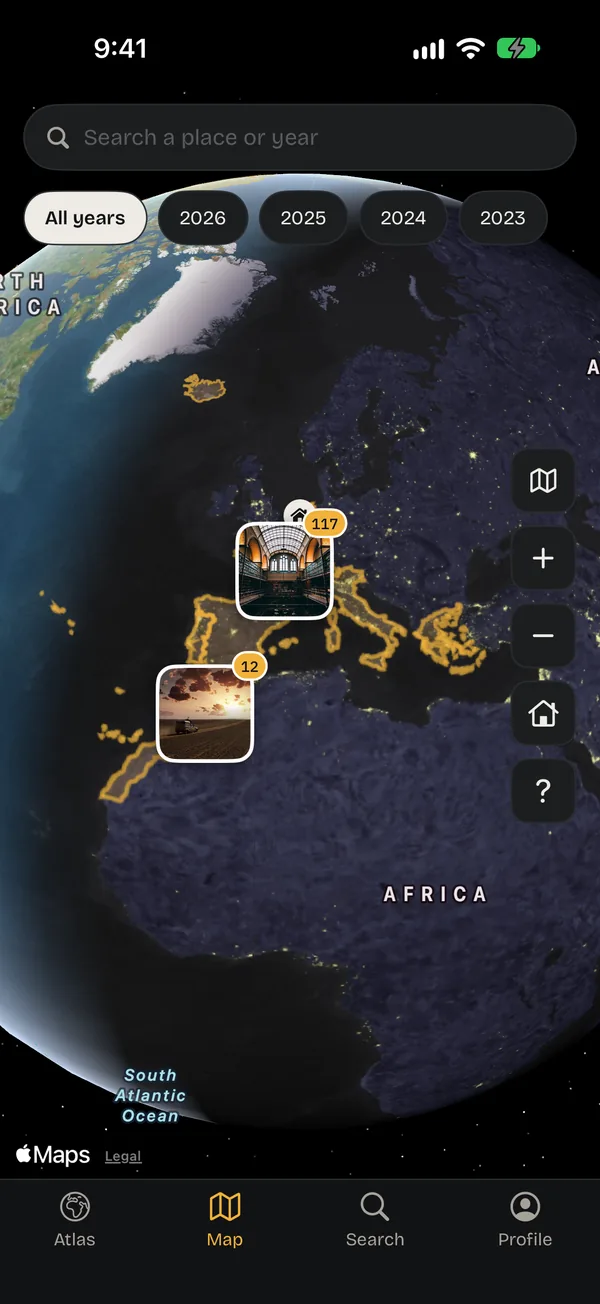
What happened to Timeline
Timeline, once called Location History, used to live in your Google account, and you could browse it on a computer. Starting in 2024, Google moved it onto each phone:
- The web version is gone. Google says Timeline isn’t available for Maps on a computer, because its data comes from your device.
- Each account had its own deadline to keep its history, about six months after Google’s email about the change. The last ones passed in mid-2025. For anyone who missed it, Google said it would try to keep the last 90 days on the first phone they used afterwards, and delete anything older.
- A technical issue in March 2025 deleted Timeline data for some people. Google said nearly everyone with encrypted backups could restore it, and that people without backups couldn’t recover what was lost.
So whether your history still exists depends on two things: whether you kept it when Google asked, and whether backups were on.
Restore it from a backup
If backups were on, an encrypted copy of your Timeline is on Google’s servers, ready to import. The steps are the same on iPhone and Android:
- Open Google Maps on your phone, signed in with the same Google account as before.
- Tap your profile picture or initial, then Your Timeline.
- Tap the cloud at the top right.
- Under Your backups, choose the device the backup came from, tap More, then Import.
- On the Import Timeline from backup screen, tap Import.
If a message says your encrypted data is locked on this device, Google’s advice is to open Timeline on the old phone that made the backup, tap the cloud, and enter your password again when asked.
Why a new phone shows an empty Timeline
Timeline is now saved on each phone separately. Nothing moves to a new phone by itself, edits on one phone don’t reach another, and resetting a phone or deleting Google Maps deletes the Timeline that was on it. A new phone starts empty until you import a backup.
- Still have the old phone? Don’t reset it yet: its Timeline is still on it. Turn on backups there (below) and import that backup on the new phone, and export a copy to keep as well.
- Is Timeline on? It’s off unless you turn it on. In Your Timeline, tap More, then Location & privacy settings, and check it there.
- Auto-delete can remove history older than 3, 18 or 36 months. It’s in the same settings, and it has to be off for backups.
To keep it from happening again, turn on backups: in Your Timeline, tap the cloud, then turn on Backup.
Save a copy of what’s left
Whatever is still on your phone, you can export to a file and keep:
- iPhone: in Google Maps, tap your profile picture, then Settings, then Location & Privacy, and tap Export Timeline data. On the share sheet, tap Save to Files. The file is called location-history.json.
- Android: open your phone’s Settings app, tap Location, then Location services, then Timeline, and tap Export Timeline data. Choose where to save it.
The file is raw data, places and times as text rather than a map, but it’s yours, and it doesn’t depend on any one phone.
When it’s gone: your photos remember
Every photo you took with location on still carries where and when it was taken, and that stays with it through new phones and years of backups. For the trips and days that mattered, your photo library is often a better record than Timeline ever was:
- One photo: swipe up on it in Photos to see where it was taken. See where was this photo taken.
- One day: see finding out where you were on a certain date.
- Older photos in Google Photos: a Takeout export keeps each photo’s date and place. See Google Photos to iPhone with Takeout.
To see it all at once, Ricordo reads the places and dates in your photos on your iPhone and turns them into the overview Timeline used to give you:
- Every trip away from home, with its dates and countries. A trip starts when your photos are more than 50 km from home and ends after more than two days without photos away, or a day back home.
- Every country and city you’ve photographed, and when you first went to each country.
- A map of your photos, all years at once or one year at a time.
- Your older Google Photos too: in Settings → Library and import, Import a Takeout archive reads the zips as they are.
It only knows where you took photos, not every street in between, so a day without photos stays blank. Nothing is uploaded and there’s no account.
Questions
Why did my Google Maps Timeline disappear?
Google moved Timeline from its servers onto each phone. History that wasn’t kept by each account’s deadline was deleted, and a technical issue in March 2025 deleted some more. On a new phone, Timeline is empty until you import a backup.
Can I still see Google Timeline on a computer?
No. Google says Timeline isn’t available for Maps on a computer. It’s only in the Google Maps app on your phone.
How do I recover my Google Maps Timeline?
If backups were on: in Google Maps, tap your profile picture, then Your Timeline, tap the cloud, choose your backup and import it. Without a backup, Google says lost Timeline data can’t be recovered.
Why is my Timeline empty on my new phone?
Timeline is saved on each phone and doesn’t move by itself. Import your backup from the cloud in Your Timeline, or export it from the old phone if you still have it.
Is there another way to see where I’ve been?
Your photos. Each one taken with location on keeps where and when it was taken. Ricordo turns them into every trip, country and city you’ve been to, on your iPhone.