How to find photos from a certain date on iPhone
Type the month and year into the Photos search, like “June 2019”, or switch your library to Years or Months and scroll back to it. To check the date of a single photo, swipe up on it or tap ⓘ.

Ricordo · Find any photo by when you travelledFree on the App Store, for iPhone and iPad
Download on the App Store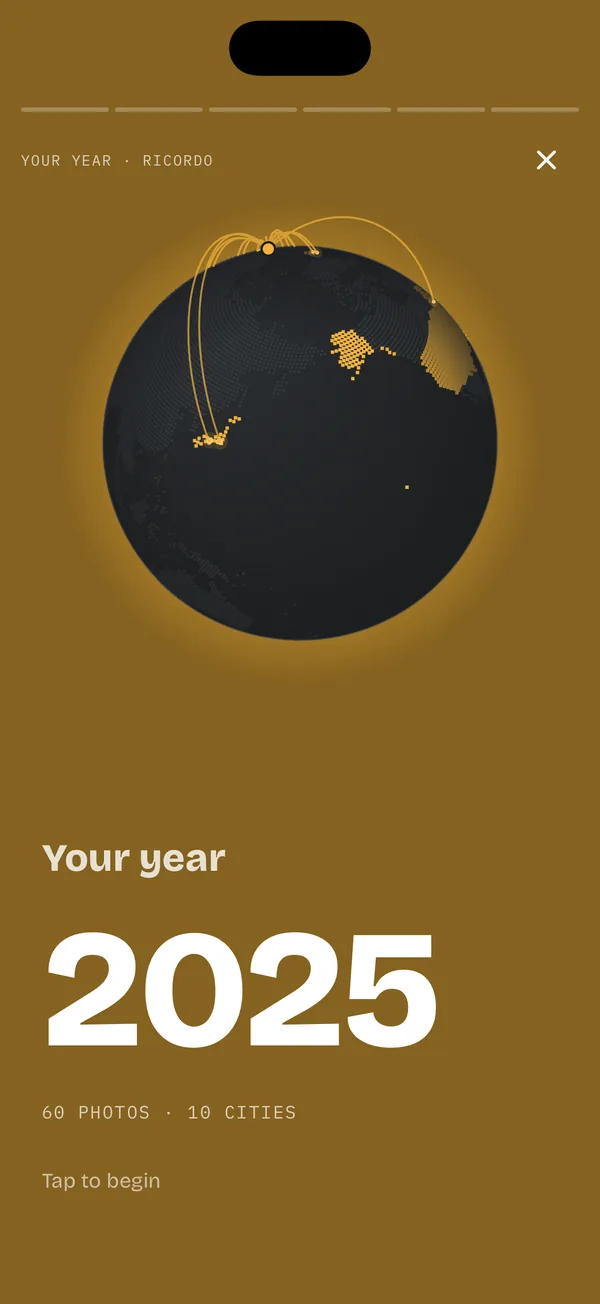
Search by month and year
- Open Photos and tap Search.
- Type the month and year, like “June 2019”, or just the year.
- Tap the suggestion, and the photos from that time appear.
Add a place to narrow it down, like “Rome 2019”, as long as those photos have a location. If you remember what was in the photo rather than when, see searching your iPhone photos.
Browse by year or month
When you know roughly when, browsing is often quicker than searching:
- iOS 18 and later: in your library, use the Years, Months and All buttons at the bottom. Years shows one photo per year; tap one to jump to it.
- iOS 17: open the Library tab and switch between Years, Months, Days and All Photos.
In Years, scroll sideways or up to go back quickly, then tap into Months to land on the right part of the year.
Check the date of one photo
Open the photo and swipe up, or tap ⓘ. The date and time are at the top of the details, with the camera that took it and, if it has one, a map of where.
If a photo turns up in the wrong place in your library, its date is probably wrong: scans of prints carry the day they were scanned, and photos saved from chats often carry the day they were saved. You can fix that: see changing the date of photos on iPhone.
Photos from this day, years ago
Sometimes the date you want is today, in an earlier year. The Photos app brings some of those back in its memories. For a photo from this exact date every day, see on this day photos on iPhone.
When you don’t remember the date
Often you remember the trip, not the month. Ricordo finds your trips in your photos on your iPhone and keeps them in order, so you can find photos by when you travelled:
- Every trip with its dates, named after where you went, like “Spring in Kyoto”. Open one and its days are in order.
- Search in your own words, places and years mixed: “beach 2019”, “sunset lisbon”, “summer”.
- Your year as a story: countries, trips, places and best moments for any year, with every other year a tap away under Other years.
- On this day: a photo from this date in an earlier year, on your Atlas and in a widget.
Questions
How do I search photos by date on iPhone?
Open Photos, tap Search and type the month and year, like “June 2019”. Or switch your library to Years or Months and scroll back to it.
Can I see all my photos from one year?
Yes. Choose Years in your library and tap the year. Ricordo also tells each year as a short story, with its countries, trips and best moments.
Why is a photo under the wrong date?
Its date is wrong: scans carry the day they were scanned, and photos saved from chats often carry the day they were saved. Tap ⓘ, then Adjust next to the date, to fix it.
How do I find photos from a trip if I don’t know the date?
Search for the place in Photos, or let Ricordo find your trips: it lists every one with its dates, from your whole library.