How to remove the location from photos on iPhone
To send a photo without its location, tap Options at the top of the share sheet and turn off Location. To remove it from the photo itself, tap ⓘ, then Adjust next to the place, and choose No Location. To stop new photos saving it at all, set the Camera’s location access to Never.

Ricordo · Your places for you, cities for everyone elseFree on the App Store, for iPhone and iPad
Download on the App Store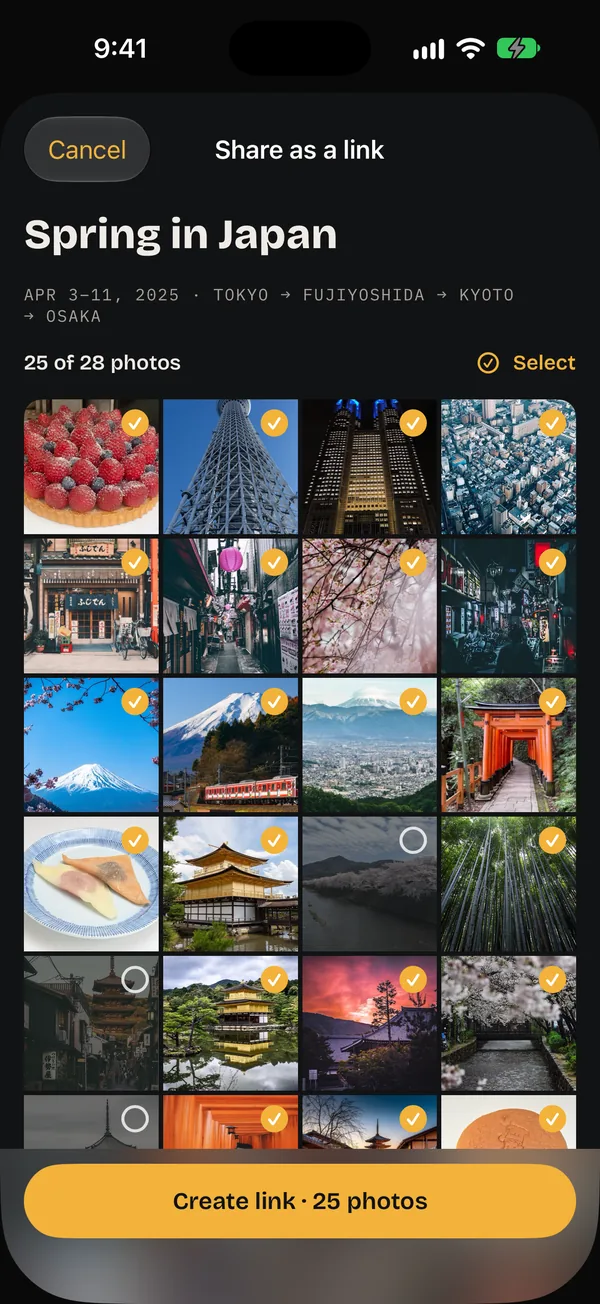
What a photo’s location gives away
Photos taken on an iPhone with Location Services on carry the exact spot where they were taken, along with the date and the camera. That’s what puts them on your map. It also means a photo taken at home can show where you live, and a photo of your child at school can show which school.
Many apps remove it when you post. Not every way of sending does, so when it matters, take it off yourself.
Remove the location from a photo you keep
If a photo should never carry its place, remove it from the photo in your library:
- Open the photo and swipe up, or tap ⓘ.
- Tap Adjust next to the place.
- Choose No Location.
For many photos at once, select them, tap ⋯, choose Adjust Location, then No Location.
Bear in mind what that costs: those photos leave the map in Photos, and travel apps can no longer place them in a country or a trip. If you change your mind, you can give them a place again: see adding a location to photos on iPhone.
Stop your iPhone saving the location
- Open Settings → Privacy & Security → Location Services.
- Tap Camera.
- Choose Never. Or keep While Using the App and turn off Precise Location, so photos save only the rough area.
Think twice before choosing Never. New photos won’t appear on any map, you won’t be able to see where a photo was taken, and apps that build trips from your photos will have nothing to go on. For most people, saving the location and leaving it out when sharing is the better balance.
Share trips without the hidden details
Ricordo uses the locations in your photos on your iPhone to build your map and your trips, and leaves them out when anything is shared:
- Trip links: only the photos you pick go, made smaller and cleaned of hidden data, including where they were taken. The page shows cities, never exact places.
- Postcards: the photo is resized and stripped of its hidden data, and it carries only your city and a point rounded to about 10 km.
- Stop sharing any time: stop a link and its page comes down and its photos are deleted from the server.
More in sharing trip photos privately, and the full list of what leaves your iPhone is on Private by design.
Questions
How do I send a photo without its location on iPhone?
In the share sheet, tap Options at the top, turn off Location and tap Done. The photo in your library keeps its place; only the copy you send goes without it.
How do I stop my iPhone saving the location in photos?
Go to Settings → Privacy & Security → Location Services → Camera and choose Never. Your new photos won’t appear on maps or in travel apps, so many people prefer to leave it out only when sharing.
Does removing the location affect my photo map?
Yes. A photo with no location leaves the map in Photos and can’t be placed in a country or a trip until it has one again.
Does Ricordo share where my photos were taken?
No. Shared trips show city names and the photos you pick, cleaned of hidden data including their location. Postcards carry only a point rounded to about 10 km.