Choosing a private photo app: what to check before you allow access
A private photo app does its work on your iPhone, doesn’t make you create an account, and says plainly what, if anything, leaves the phone. Before you allow access to your library, check six things. It takes two minutes, and the App Store shows most of them.

Ricordo · The travel app that never sees your photosFree on the App Store, for iPhone and iPad
Download on the App Store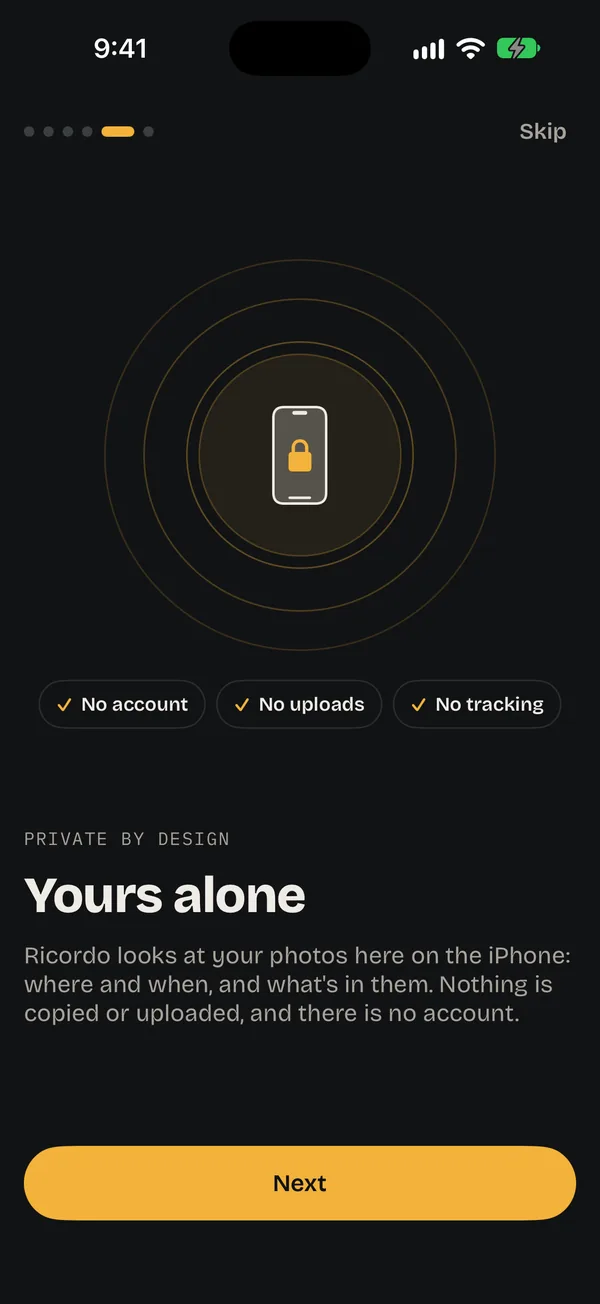
Why your photo library deserves a second look
Your photo library is probably the most personal thing on your phone. Beyond the photos themselves, it holds where and when each one was taken, the faces of everyone you know, and a pile of screenshots: tickets, documents, messages, bank details you meant to delete.
Where a photo was taken is the part people forget. A few hundred photos with locations are enough to work out where you live, where you work and when you’re away. So when an app asks for full access, it’s asking for all of that.
Six things to check before you tap Allow
- Does it need an account? If an app wants your email before it shows you anything, your photos are probably meant to end up on its servers. A private app should work the moment you open it.
- Where is the work done? Recent iPhones can find faces, scenes and places on their own chip. Look for an app that says the work happens on the phone, not “in the cloud”.
- Does it say what leaves the phone? The best apps give a plain list: what is sent, when, and where to. Vague words like “may share with partners” are a warning.
- What does the privacy label say? On the app’s App Store page, scroll to App Privacy. Look for “Data Not Collected”, and be wary of anything under “Data Used to Track You”.
- Can you give it only some photos? iOS lets you share just the photos you choose. An app that sorts your whole library needs full access to do its job, which is exactly why the other checks matter.
- Does it work in Airplane Mode? Turn on Airplane Mode and open the app. If the main features still work, the work really is happening on your phone.
How to give an app only some of your photos
You can change what any app sees at any time:
- Open Settings and tap Privacy & Security, then Photos.
- Tap the app.
- Choose Limited Access to pick the photos it may see, Full Access for everything, or None.
Limited Access is perfect for an app that edits one photo at a time. For an app that maps or sorts your whole library, it means most of your library is simply missing, so choose an app you trust with full access instead.
A photo app without the cloud
“Without the cloud” doesn’t have to mean without backups. Your own iCloud, protected by your Apple ID, is different from a company’s servers that read your photos to run their service. A private photo app can leave your photos exactly where they are, in your library and your iCloud, and simply read them on the phone. (If you want the photos themselves out of sight, that’s a different job: see hiding photos on iPhone, or a private photo profile for keeping them to yourself.)
That’s the idea behind Ricordo, an app that turns your photo library into a private atlas of every country, city and trip you’ve been to. Here’s how it answers the checklist:
| Question | Ricordo |
|---|---|
| Account? | None. You sign in with Apple only to share or send postcards, and Ricordo never sees your email. |
| Where is the work done? | On the iPhone: places, trips, faces, scenes, search and trip stories. |
| What leaves the phone? | A plain list in the app and on Private by design. Apple Maps place names are on from the start; the other extras are off until you turn them on. |
| Ads or trackers? | None. No analytics, no profiling, and no tracking across apps or websites. |
| Airplane Mode? | Your atlas, places, trips, faces, search and stories all work offline, with 160,000 cities kept on the phone. |
| Your library? | Read where it is. Ricordo never moves, copies or changes your photos. |
The little that does leave
No app that shows maps can be completely offline: like any map app, the maps you look at load the area on screen from Apple. Beyond that, Ricordo lists every extra in Settings → Internet, with what it sends.
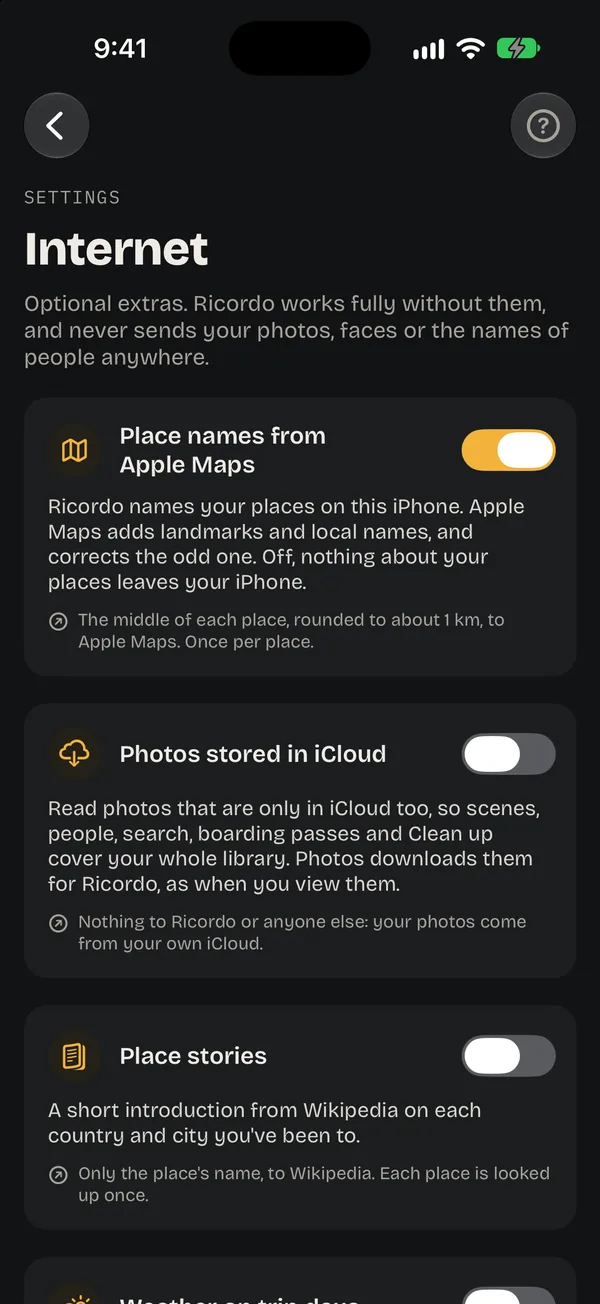
Place names from Apple Maps, for example, send the middle of each place, rounded to about 1 km, once per place, and you can turn that off. Photos only reach Ricordo’s server when you share a trip as a link or send a postcard yourself; the guide to sharing trip photos privately explains what goes with them.
Questions
Is it safe to give an app full access to my photos?
It depends on the app. Full access lets it read every photo, with where and when it was taken. Check whether it needs an account, where its work is done, what it says leaves the phone and its App Store privacy label.
What is a photo app without the cloud?
One that does its work on your iPhone instead of sending your photos to its own servers. Your photos can still be backed up to your own iCloud.
Can I let an app see only some photos?
Yes. Go to Settings → Privacy & Security → Photos, tap the app and choose Limited Access.
Does Ricordo need an account?
No. Open it and it works. You sign in with Apple only to share a trip or send postcards.
Does Ricordo work offline?
Yes. Your atlas, places, trips, faces, search and stories work without a connection. Sharing, postcards and the internet extras need one.