How to hide photos on iPhone, and keep them hidden
Touch and hold a photo, tap Hide, and it moves to the Hidden album, out of your library, your albums and the Photos widget. The Hidden album opens only with Face ID, Touch ID or your passcode, and you can take the album itself out of sight in Settings.

Hide a photo or video
- In Photos, touch and hold the photo or video.
- Tap Hide, then confirm.
To hide several at once, tap Select, tap each one, then tap the More button (•••) and Hide.
Hidden photos leave your library and your albums, and they don’t show in the Photos widget on your Home Screen. With iCloud Photos on, a photo you hide on your iPhone is hidden on your other devices too.
Find the Hidden album, and unhide a photo
- Open Photos. On iOS 18 and later, scroll to Utilities in your collections; on iOS 17, open Albums and scroll to Utilities.
- Tap Hidden, then View Album, and unlock it with Face ID, Touch ID or your passcode.
- To bring a photo back, touch and hold it, then tap Unhide.
No Hidden album under Utilities? It’s been taken out of sight. Turn Show Hidden Album back on, as below.
Lock it, or hide the album itself
Since iOS 16, the Hidden and Recently Deleted albums are locked: they open only with Face ID, Touch ID or your passcode. If yours opens without asking, look in Settings → Apps → Photos (on iOS 17, Settings → Photos) for the Face ID, Touch ID or passcode switch, and turn it on.
To take the album out of sight too, turn off Show Hidden Album in the same place. The photos stay hidden and nothing is deleted; turn it back on to see them again.
What hiding doesn’t do
- It doesn’t delete anything. A hidden photo still takes space, and still syncs with iCloud Photos.
- It’s only as safe as your passcode. Anyone who knows it can open the Hidden album.
- It doesn’t reach what you’ve already sent. Photos in a chat or a shared album stay there.
- Other apps decide for themselves. An app with access to your photo library can choose whether to read hidden photos, so check what it says before you give it full access.
Sharing a photo you’d rather keep vague? Its location can go first: see removing the location from photos.
Hidden photos in Ricordo
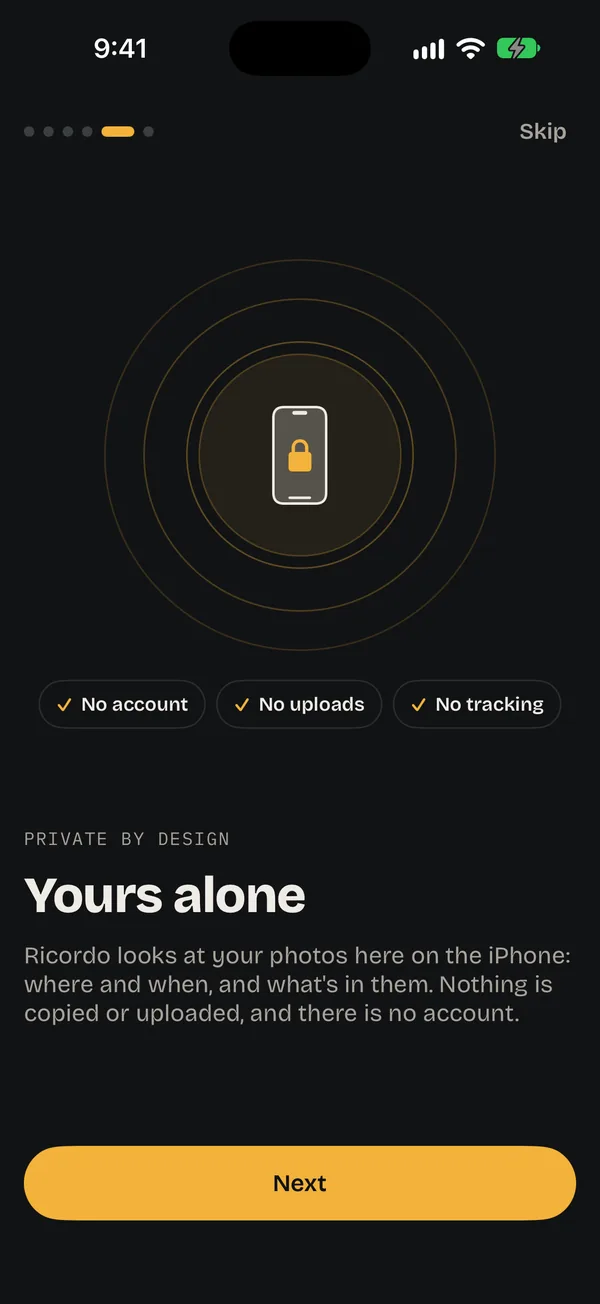
Ricordo never reads your Hidden album. Hidden photos stay out of your map, your trips, your profile and anything you share, with nothing to set up. Inside the app there’s more you can keep to yourself:
- Private on any photo keeps it out of the trip links you share: it’s never offered when you pick the photos.
- Hide trip, in a trip’s ••• menu, takes it out of your trips. It waits in the Hidden list at the foot of your trips, where Unhide brings it back.
- In People, Hide puts anyone you’d rather not see out of the way, and Show brings them back.
All of it happens on your iPhone. Ricordo has no account to see your library, and your photos are never uploaded. More in a private photo app.
Questions
How do I hide photos on my iPhone?
Touch and hold the photo in Photos and tap Hide. For several, tap Select, choose them, then tap the More button and Hide. They move to the Hidden album.
Where do hidden photos go on iPhone?
To the Hidden album, under Utilities in Photos. It opens with Face ID, Touch ID or your passcode.
Can I lock the Hidden album with Face ID?
Yes. Since iOS 16 it’s locked by default. If it opens without asking, turn the switch back on in Settings → Apps → Photos (Settings → Photos on iOS 17).
Are hidden photos still in iCloud?
Yes. Hiding isn’t deleting: with iCloud Photos on, hidden photos stay in iCloud and are hidden on your other devices too.
Does Ricordo show my hidden photos?
No. Ricordo never reads the Hidden album, so those photos stay out of your map, your trips and anything you share.