How to make a travel map animation of your trip
A travel map animation draws your route across the map, stop by stop, the way travel films often open. On iPhone you can make one by hand in Keynote, with a map and a line that draws itself, or let Ricordo draw it from where your photos were taken and save it with Screen Recording.

Ricordo · Your route, drawn from your photosFree on the App Store, for iPhone and iPad
Download on the App Store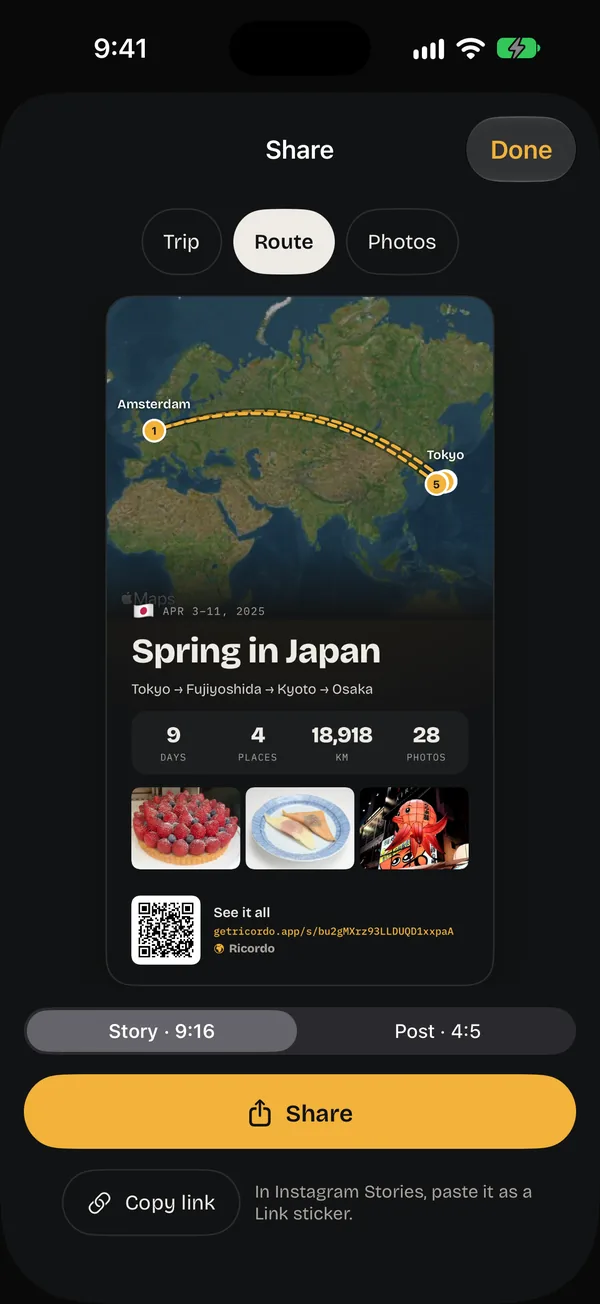
What makes a good one
- The stops in the right order. Your photos already have them: each one has a time and a place.
- A quiet map, so the line stands out.
- How you travelled. A plane for the flight out, the road between towns.
- Short legs. About a second for each, or people stop watching.
Let your photos draw it
Ricordo finds your trips in your photo library and works out the route through every place in the order you went. Each trip animates it for you:
- Open a trip in Ricordo.
- Scroll to How you got around. The route draws itself on the map leg by leg, with a plane along the flights and a car along the rest, and each stop lights up as it’s reached.
- Tap the map to play it again.
For the whole trip as a story, tap Relive the trip: the cover, the way you went drawn on a big map, then each day’s best photo with your note, and the trip in numbers at the end. Swipe up to go from page to page.
Ricordo tells a flight from the road by how far and how fast you went between photos, and the boarding passes in your screenshots confirm it. More in the flight log guide. A trip that stayed in one place has no route to draw. Both the route and Relive the trip are free.
Save it as a video
Your iPhone can record its own screen, which turns any animation into a video in Photos.
- Open Control Center: swipe down from the top-right corner of the screen.
- Tap the Screen Recording button and wait for the three-second countdown. If it’s not there, add it: on iOS 18 and later, tap + at the top left, then Add a Control; on iOS 17, go to Settings → Control Center.
- Go back to Ricordo and tap the route map to play it.
- Tap the recording indicator at the top of the screen, then Stop. The video is saved to Photos.
To cut the start and end, open the video in Photos, tap Edit and drag the ends of the timeline.
Turn on Do Not Disturb before you record, so a message doesn’t land in the middle of your route.
Make one by hand in Keynote
Keynote, Apple’s free presentation app, can draw a line as if by hand. It takes longer, but you choose every stop:
- Take a screenshot of the area in Maps, zoomed so all your stops fit.
- Start a new Keynote presentation and add the screenshot to a slide.
- Add a drawing (Add Drawing, from the toolbar button for adding content) and trace your route over the map with your finger.
- Tap the drawing, then Animate → Add Build In → Line Draw, and tap Done. Tap Line Draw again to set how long it takes.
- Save it as a video: from the toolbar, choose Export and Send (Export in older versions), then Movie.
Add a slide for each leg, with the city names as text, for a longer story. It’s about half an hour’s work for a two-week trip.
Questions
How do I make a travel map animation on iPhone?
Let Ricordo draw your trip’s route from your photos and record it with Screen Recording, or make one by hand in Keynote with a map screenshot and a drawing animated with Line Draw.
Is there an app that animates my trip route automatically?
Yes. Ricordo finds your trips in your photos and draws each route leg by leg on a map, with a plane for flights and a car for the road, on your iPhone.
Can I save the route animation as a video?
Yes. Start Screen Recording from Control Center, play the route, and stop the recording. The video is saved to Photos, where you can trim it.
Is it free?
Yes. The animated route and Relive the trip are part of free Ricordo, and so are Screen Recording and Keynote.
Does Ricordo upload my photos to draw the route?
No. The route is worked out from your photos on your iPhone. Like any map app, the map itself loads from Apple.