How to organise your travel photos by trip on iPhone
There are two ways: make an album for each trip in the Photos app and fill it by date, or use an app that finds the trips for you from when and where each photo was taken. The first takes an evening per year of photos. The second runs on its own while you do something else.

Ricordo · Every trip, found and named for youFree on the App Store, for iPhone and iPad
Download on the App Store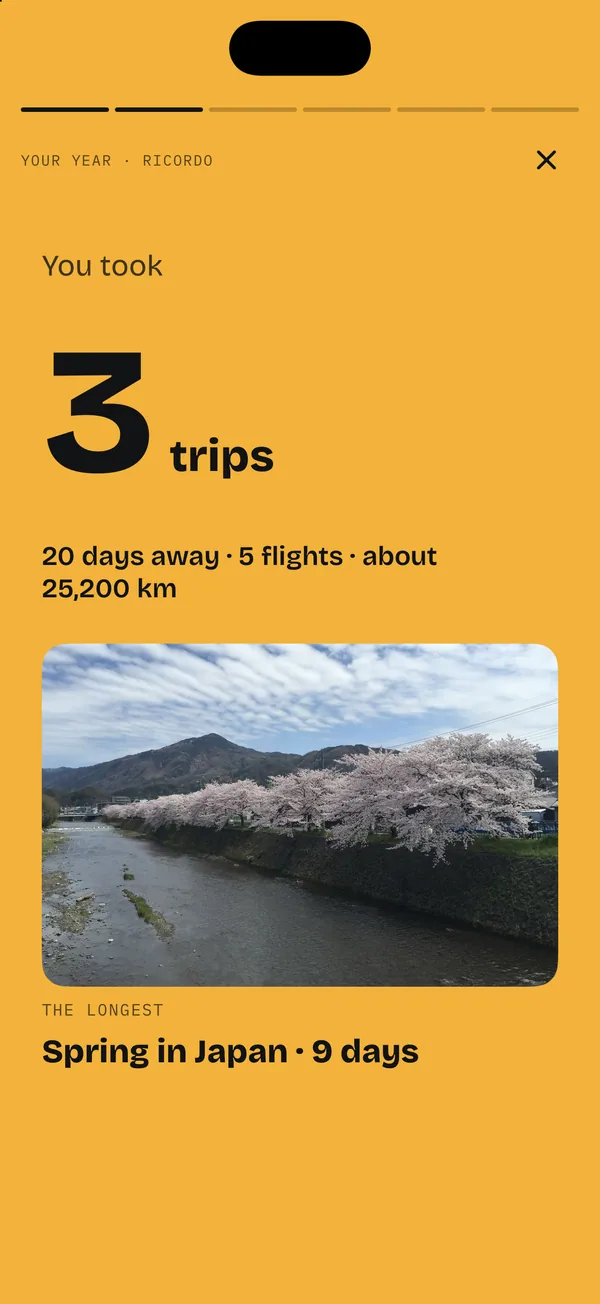
Why travel photos get lost
Your camera roll is in date order, and that’s all. The week in Lisbon sits between a receipt and a screenshot of a recipe, and three years of trips blur into one long scroll. Search helps when you remember what you’re looking for. It doesn’t help when you want to look back at a trip as a whole.
By hand: an album for each trip
- In Photos, find the first photo of the trip in your library.
- Tap Select, then drag your finger across the photos to select the whole trip at once.
- Tap the ⋯ (or the share button) and choose Add to Album → New Album. Name it after the trip.
- Repeat for every trip, then keep your trips together in a folder.
Albums don’t copy your photos, so they take no extra space. The catch is time: you have to find where each trip starts and ends, and do it again after every trip. And an album is still just a grid, with no map, no route and no sense of the days.
The map in the Photos app helps you find trips you’ve forgotten: zoom out and look for clusters far from home. See how to see your photos on a map.
Built in: Trips in the Photos app
On iOS 18 and later, the Photos app also gathers some trips on its own: scroll down to Collections and look for Trips. It’s a good start for recent holidays. What it doesn’t give you is the whole picture: a count of your countries and cities, each trip’s route, or a way to say where a trip really starts and ends.
Automatically: let the photos sort themselves
Every photo knows when and where it was taken. That’s enough to tell a trip from a normal Tuesday. Ricordo does it on your iPhone with a simple rule:
- It learns where home is from your photos.
- A trip starts when your photos are more than 50 km from home.
- It ends after more than two days without photos away, or on a day back home.
Each trip is then named after where you went, like “Spring in Kyoto” or “Lisbon & Sintra”, and opens day by day with its route and how you got around. You can change home and the 50 km in Settings, and tap Why is this a trip? on any trip to see the reasoning.
Nothing in your library moves. Ricordo reads your photos where they are and never copies, moves or changes them, so your Photos app stays exactly as it was.
Fix what it got wrong
Life doesn’t always follow rules: a weekend away merges into the next trip, or a long trip has a quiet day in the middle. In Ricordo you can, in a tap:
- Rename a trip and add a description.
- Merge it with the next trip.
- Split it on any day.
- Move photos with no location into the right trip, from To sort.
Every fix is remembered, even when Ricordo rescans your library after you take new photos, and with iCloud sync on, your fixes follow you to your iPad or a new iPhone.
Photos without a location
Photos saved from chat apps, or taken while the Camera couldn’t use your location, have no place. Ricordo puts many of them in the right trip by matching their dates to your trips. The rest are grouped into moments in Where were you?: say where you were once and the whole moment joins your map. More in adding a location to photos.
Questions
Can my iPhone sort photos by trip automatically?
Partly. On iOS 18 and later, Photos gathers some trips under Collections. Ricordo finds every trip in your library from when and where each photo was taken, names it, and draws its route.
Does organising photos into trips use more storage?
No. Albums in Photos are only lists, and Ricordo reads your photos where they are without copying them.
What counts as a trip?
In Ricordo, a trip starts when your photos are more than 50 km from home and ends after more than two days without photos away, or a day back home. You can change the distance in Settings.
Will it change my Photos library?
No. Ricordo never moves, copies or changes your photos. Your trips live in Ricordo; your library stays as it is.
Does it work on iPad too?
Yes. Ricordo is for iPhone and iPad, and with iCloud sync on, your trip fixes are the same on both.