How to find every photo of someone on your iPhone
In Photos, open People, tap the person’s face and give them a name. Every photo of them is then in one place, and their name works in search. To see the trips you took together, an app like Ricordo groups the same faces by trip.

Ricordo · Every trip, and who was thereFree on the App Store, for iPhone and iPad
Download on the App StoreFind someone with People in Photos
Your iPhone recognises the faces in your photos on its own and groups them by person. To use it:
- Open Photos. On iOS 17, go to Albums and find People; on iOS 18 and later, scroll down to your collections and open People & Pets.
- Tap the face of the person you’re looking for.
- Tap Add Name at the top and type their name.
- If Photos asks you to review more photos of them, go through them. Each one you confirm makes it better.
Their page now shows every photo they’re in, newest first. If the same person shows up twice, select both faces and merge them.
Search for them by name
Once someone has a name, you can type it in Photos’ search, and mix it with other clues: their name and a place, or their name and a year. That’s often the quickest way to a particular photo. More ideas are in searching your iPhone photos.
When some photos of them are missing
Face grouping is good, not perfect. It most often misses people when:
- Their face is small, turned away, or half hidden by sunglasses or a hat.
- They were a child in the older photos and look different now.
- The photos are only in iCloud and haven’t been looked at on this iPhone yet.
- The library is new on this phone, and your iPhone is still working through it, mostly while it’s locked and charging.
Give it a few nights on charge, keep confirming the photos Photos asks about, and the group fills in.
See every trip you took together
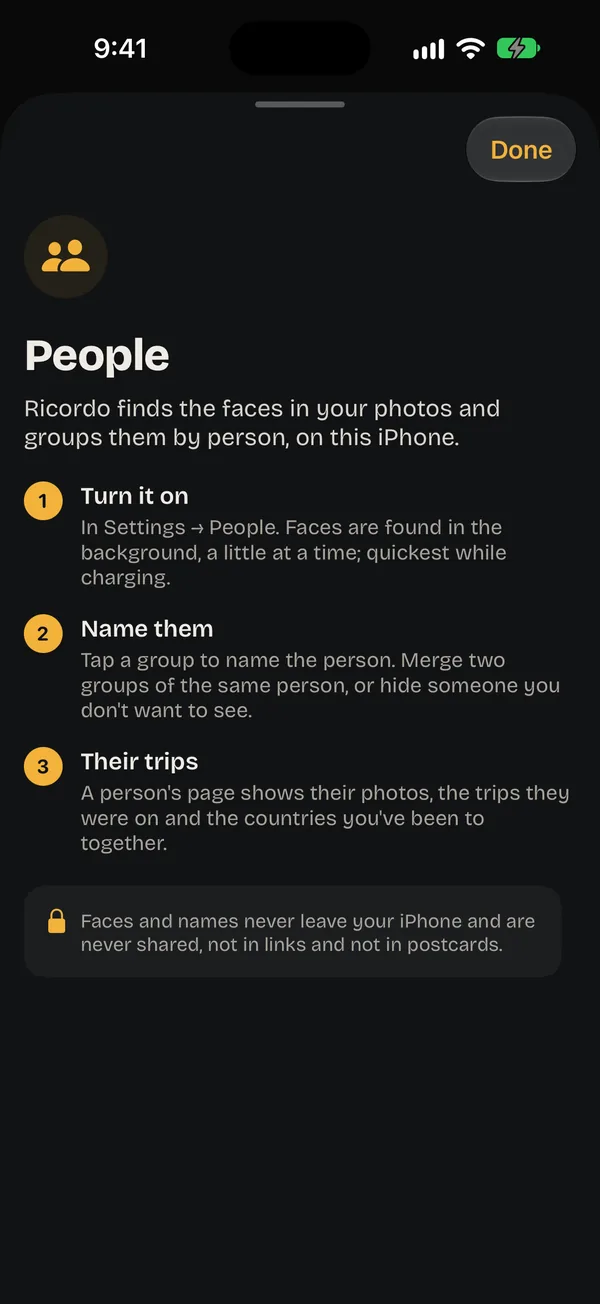
A person’s page in Photos is a long list of pictures. What it doesn’t tell you is the story: where you went together, and when. Ricordo’s People does that part.
- Trips together: every trip you took with someone, newest first, with how long you were away.
- Countries together: the countries you’ve seen side by side, from the first trip to the latest.
- Who was there: every trip shows the people in its photos.
- Search: “Mia in Japan”, “Leo 2024”, “Mum by the sea”.
- In Ricordo, tap Turn on People. It looks through your photos in the background, trips first. A big library takes a few minutes, best while charging.
- Name who you know. Anyone who turns up in at least three photos appears.
- Fix what’s wrong: Review faces takes out one that isn’t them, Same as… brings two groups together, and Hide from People keeps someone out.
Ricordo finds faces itself, so it works the same with any library. The names you gave in Photos don’t carry over. People reads the photos already on your iPhone; to include ones stored only in iCloud, turn on Photos stored in iCloud in Ricordo’s Settings, and they’re read on Wi-Fi.
Faces are personal. Keep them on your phone
Faces are found and grouped on your iPhone itself, and the names you give stay on it. Ricordo never matches faces against anything outside your library, and faces and names are never shared, not in links and not in postcards. Turn People off and every face, group and name is deleted; your photos aren’t touched.
Want to send the people you travel with a photo from the road? See the family photo widget or sharing trip photos privately.
Questions
How do I see all photos of one person on iPhone?
Open People in Photos (People & Pets on iOS 18 and later), tap their face and add their name. Their page shows every photo they’re in.
Why doesn’t Photos find every photo of someone?
Small, turned or half-hidden faces are often missed, and a new library takes a while to read. Confirm the photos Photos suggests, and leave your iPhone charging overnight.
Can I see every trip I took with someone?
Photos lists their pictures but not your trips. Ricordo shows every trip and country you shared with someone you’ve named.
Do the names from Apple Photos carry over to Ricordo?
No. Ricordo finds faces itself, on your iPhone, so you name people once in Ricordo.
Can I keep someone out of People?
Yes. Hide them and they leave People, while their photos stay in your library and your trips.