Travel widgets for your iPhone Home Screen and Lock Screen
Three travel widgets earn a place on an iPhone: one with the countries you’ve been to, one with a memory from this day in an earlier year, and one with photos sent by the people you love. Ricordo has all three, filled in from your own photos, for the Home Screen and the Lock Screen.

Ricordo · Your travels on your Home ScreenFree on the App Store, for iPhone and iPad
Download on the App Store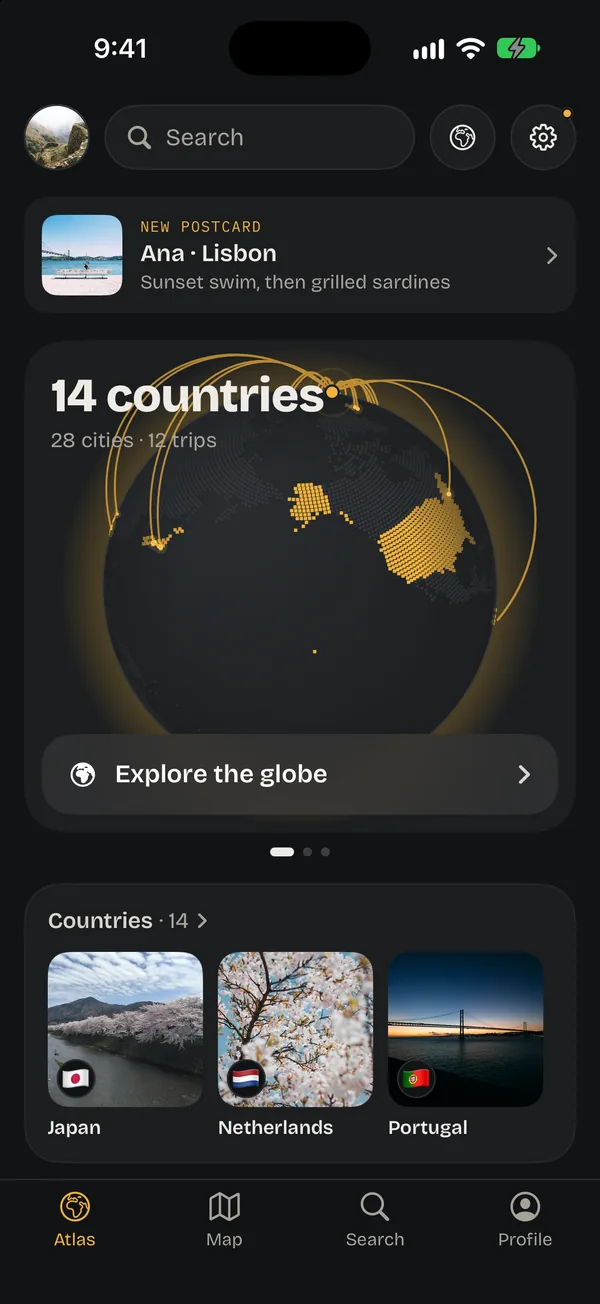
Three travel widgets worth a spot
A good widget is something you’re glad to see fifty times a day. For travel, that tends to be one of these:
- Your countries. Ricordo’s Your world widget shows the countries you’ve been to, worked out from where your photos were taken. It fills itself in as you travel.
- A memory. On this day brings back a photo from this very day in an earlier year: last summer’s beach, a city three years ago.
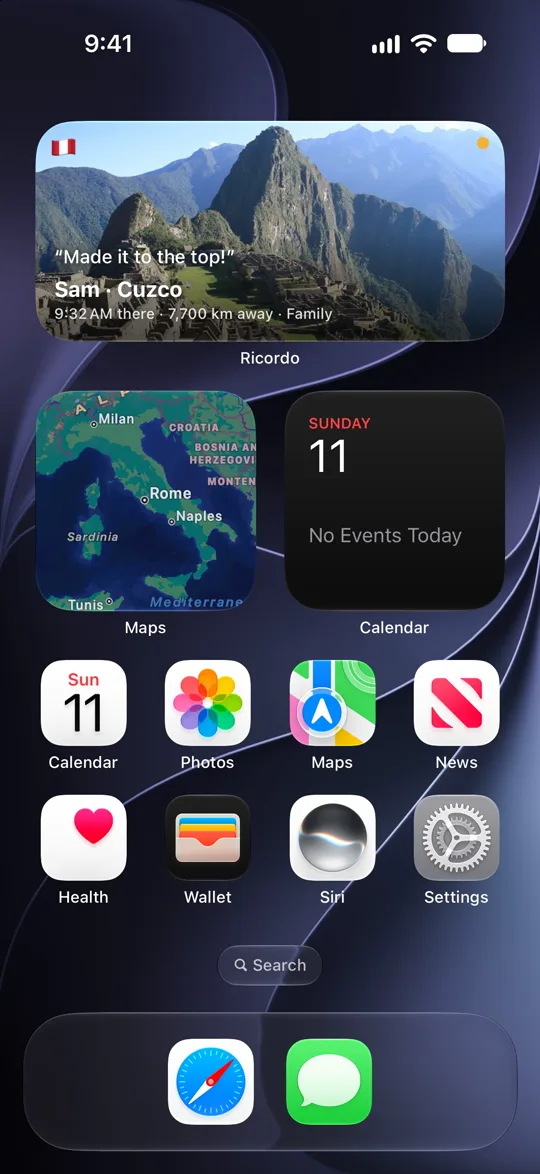
- Postcards. The Postcards widget shows the latest photo sent by your partner or family from wherever they are, with the time there.
Apple’s own Photos widget is worth a look too: it picks photos from your whole library for you. The Ricordo widgets are about the places in them.
Add a widget to your Home Screen
- Touch and hold an empty part of your Home Screen until the apps jiggle.
- Tap Edit, then Add Widget. (On iOS 17, tap the + in the top corner.)
- Search for Ricordo and choose a widget: Your world, On this day or Postcards.
- Swipe to pick a size, then tap Add Widget.
- Drag it where you want it and tap Done.
To change what a widget shows, touch and hold it and tap Edit Widget. The Postcards widget, for example, can show everyone, one group or one person.
Add one to your Lock Screen
The Lock Screen works the same way, with smaller widgets that sit under the clock:
- Touch and hold your Lock Screen, then tap Customise.
- Choose the Lock Screen, then tap the space for widgets under the time.
- Find Ricordo and tap the widget you want to add.
- Close the list of widgets and tap Done.
Your world fits there nicely: your countries, every time you pick up your phone.
A countries visited widget that fills itself in
Most countries visited widgets need you to tick off every country by hand, and then you forget to update them. Your world takes its countries from your photos: every photo with a location finds its country on your iPhone, so a new trip appears on its own.
Countries you went to before your iPhone can be added by hand in Ricordo, and they count too. The guide to counting your countries explains how, and the travel map shows them all on a globe.
An On this day memories widget
On this day is the gentlest widget of all. It shows a photo from this date in an earlier year, so an ordinary Tuesday turns into “three years ago today, you were in Lisbon”.
Prefer not to give it Home Screen space? Ricordo can also send it as a morning notification, with a photo from this day in an earlier year. More ideas in the On this day guide.
A widget from the people you love
The Postcards widget is the only one that shows someone else’s photos. When your partner or family send a postcard from their trip, it lands there, with their city, the time where they are and how far away. Set it up once, and they can send from anywhere.
See the family photo widget guide or the couples photo widget guide to set it up.
On iPad
The same widgets work on iPad, including an extra large size that suits a family iPad on the kitchen counter. Your edits in Ricordo stay in step between your iPhone and iPad through your own iCloud.
Questions
Is there a widget that shows the countries I’ve visited?
Yes. Ricordo’s Your world widget shows your countries, worked out from where your photos were taken, and updates as you travel.
How do I get an On this day widget on my iPhone?
Touch and hold your Home Screen, tap Edit, then Add Widget. Search for Ricordo, choose On this day, swipe to pick a size and tap Add Widget.
Can I put a travel widget on my Lock Screen?
Yes. Touch and hold your Lock Screen, tap Customise, then tap the space for widgets and choose Ricordo’s Your world widget.
Do the widgets upload my photos?
No. Your world and On this day come from your own library, worked out on your iPhone. Postcards are the only photos that travel, from the people you’ve paired with.